

If Pistonlog opens but looks like plain text, buttons appear in the wrong places, or colours and spacing are missing, the browser on the device may be too old to display the site correctly.
Start by checking and updating the browser. This is especially important on older workshop tablets that may not update automatically.
Supported browser versions
Pistonlog requires Chrome 111 or newer, Edge 111 or newer, Firefox 128 or newer, or Safari 16.4 or newer. We recommend using the latest version available for your device.
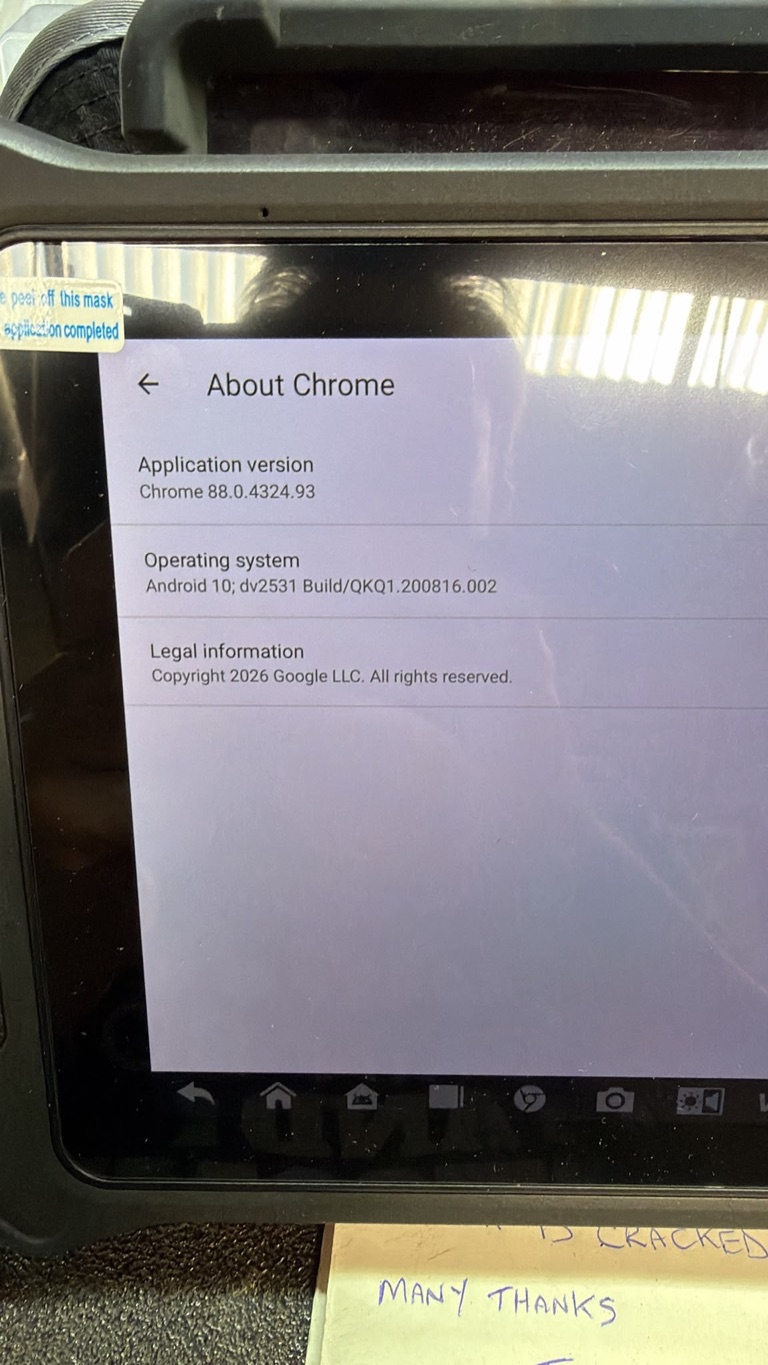
This example shows Chrome 88, which is below the supported minimum and can make Pistonlog appear unstyled.
Check your Chrome version
Open Chrome
Open Chrome on the affected phone or tablet.
Open Settings
Tap the three-dot menu, then tap Settings.
Open About Chrome
Scroll down and tap About Chrome. The application version is shown near the top of the screen.
If the version is below 111, update Chrome before trying other troubleshooting steps.
Update an Android phone or tablet
Open the Google Play Store
Search for Google Chrome and tap Update.
Update Android System WebView
Search for Android System WebView and tap Update if the option is available.
Restart the device
Fully restart the phone or tablet after both updates have finished.
Open Pistonlog again
Open Chrome and go to app.pistonlog.com.
Use the correct address
The Pistonlog application is at app.pistonlog.com. The www.pistonlog.com address is the public website and Help Center.
If no update is available
Some older or managed workshop tablets no longer receive browser updates. If the Play Store does not offer a newer version:
- Check for an Android system update in the device settings
- Ask the device supplier or your IT administrator whether updates are restricted
- Use another phone, tablet, or computer with a supported browser
Avoid installing Chrome from an unofficial download website.
If the page still looks wrong
After updating, fully close Chrome and restart the device once more. Confirm that Chrome now reports version 111 or newer, then reopen Pistonlog using the address above.
If the problem continues, contact Pistonlog Support and include:
- A photo or screenshot of the affected page
- A photo of the About Chrome screen
- The exact page address
- The approximate time the problem happened